What is WebGL?
Previously, if you wanted to do real-time 3D graphics on the web, your only real option was to use a plugin such as Java or Flash. However, there is currently a push to bring hardware-accelerated graphics to the web called WebGL. WebGL is based on OpenGL ES 2, which means that we’ll need to use shaders. Since WebGL runs inside a web browser, we’ll also need to use JavaScript to control it.
Prerequisites
You’ll need a browser that supports WebGL, and you should also have the most recent drivers installed for your video card. You can visit Get WebGL to see if your browser supports WebGL and if not, it will tell you where you can get a browser that supports it.
The latest stable releases of Chrome and Firefox support WebGL, so you can always start there.
This lesson uses the following third-party libraries:
- webgl-utils.js — for basic initialization of an OpenGL context and rendering on browser request.
- glMatrix.js — for matrix operations.
Assumptions
The reader should be familiar with programming and 3D concepts on a basic level. The Khronos WebGL Public Wiki is a good place to start out.
Getting started
As I write this, I am also learning WebGL, so we’ll be learning together! We’ll look at how to get a context and start drawing stuff to the screen, and we’ll more or less follow lesson one for Android as this lesson is based on it. For those of you who followed the Android lesson, you may remember that getting an OpenGL context consisted of creating an activity and setting the content view to a GLSurfaceView object. We also provided a class which overrode GLSurfaceView.Renderer and provided methods which were called by the system.
With WebGL, it is just as easy to get things setup and running. The webgl-utils.js script provides us with two functions to get things going:
| |
The setupWebGL() function takes care of initializing WebGL for us, as well as pointing the user to a browser that supports WebGL or further troubleshooting if there were errors initializing WebGL. More info on the optional parameters can be found at the WebGL Specification page, section 5.2.1.
The second function provides a cross-browser way of setting up a render callback. The browser will call the function provided in the callback parameter at a regular interval. The element parameter lets the browser know for which element the callback is firing.
In our script we have a function main() which is our main entry point, and is called once at the end of the script. In this function, we initialize WebGL with the following calls:
| |
If the calls were successful, then we go on to initialize our model data and set up our rendering callback.
Visualizing a 3D world
Like in lesson one for Android, we need to define our model data as an array of floating point numbers. These numbers can represent vertex positions, colors, or anything else that we need. Unlike OpenGL ES 2 on Android, WebGL does not support client-side buffers. This means that we need to load all of the data into WebGL using vertex buffer objects (VBOs). Thankfully, this is a pretty trivial step and it will be explained in more detail further below.
Before we transfer the data into WebGL, we’ll define it in client memory first using the Float32Array datatype. These typed arrays are an attempt to increase the performance of Javascript by adding typing information.
| |
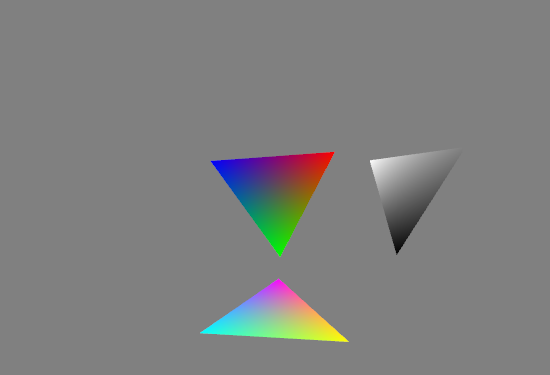
All of the triangles can share the same position data, but we’ll define a different set of colors for each triangle.
Setting up initial parameters
After defining basic model data, our main function calls startRendering(), which takes care of setting up the viewport, building the shaders, and starting the rendering loop.
Setting up the viewport and projection matrix
First, we configure the viewport to be the same size as the canvas viewport. Note that this assumes a canvas that doesn’t change size, since we’re only doing this once.
| |
Then we setup the projection matrix. Please see “Understanding matrices” for more information.
| |
Configuring the view matrix and default parameters
Setting up the viewport and configuring the projection matrix is something we should do whenever the canvas has changed size. The next step is to set the default clear color as well as the view matrix.
| |
Loading in shaders
Finally, we load in our shaders and compile them. The code for this is essentially identical to Android; please see “Defining vertex and fragment shaders” and “Loading shaders into OpenGL” for more information.
In WebGL we can embed shaders in a few ways: we can embed them as a JavaScript string, we can embed them into the HTML of the page that contains the script, or we can put them in a separate file and link to that file from our script. In this lesson, we take the second approach:
<script id="vertex_shader" type="x-shader/x-vertex">
uniform mat4 u_MVPMatrix;
...
</script>
<script id="vertex_shader" type="x-shader/x-vertex">
precision mediump float;
...
</script>
We can then read in these scripts using the following code snippit:
| |
Uploading data into buffer objects
I mentioned a bit earlier that WebGL doesn’t support client-side buffers, so we need to upload our data into WebGL itself using buffer objects. This is actually pretty straightforward:
| |
First we create a buffer object using createBuffer(), then we bind the buffer. Then we pass in the data using gl.bufferData() and tell OpenGL that this buffer will be used for static drawing; this hints to OpenGL that we will not be updating this buffer often.
WebGL versus OpenGL ES 2
You may have noticed that the WebGL API is a bit different than the base OpenGL ES 2 API: functions and variable names have had their “gl” or “GL_” prefixes removed. This actually makes the API a bit cleaner to use and read. At the same time, some functions have been modified a bit to mesh better with the JavaScript environment.
Setting up a rendering callback
We finally kick off the rendering loop by calling window.requestAnimFrame():
| |
Rendering to the screen
The code to render to the screen is pretty much a transpose of the lesson one code for Android. One main difference is that we call window.requestAnimFrame() at the end to request another animation frame.
| |
Recap
If everything went well, you should end up with an animated canvas like the one just below:
If you would like more explanations behind the shaders or other aspects of the program, please be sure to check out lesson one for Android.
Debugging
Debugging in JavaScript in the browser is a little more difficult than within an integrated environment such as Eclipse, but it can be done using tools such as Chrome’s inspector. You can also use the WebGL Inspector, which is a plugin that lets you delve into WebGL’s internals and get a better idea of what’s going on.
Embedding into WordPress
WebGL can easily be embedded into your posts and pages! You need a canvas, script includes for any third-party libraries, and a script body for your main script (this can also be an include).
Example of a canvas:<pre><canvas id="canvas" width="550" height="375">Your browser does not support the canvas tag. This is a static example of what would be seen.</canvas></pre>
…
Example of a script include:<pre><script type="text/javascript" src="https://www.learnopengles.com/wordpress/wp-content/uploads/2011/06/webgl-utils.js"></script></pre>
Example of an embedded script:<pre><script type="text/javascript">
/**
* Lesson_one.js
*/
...
</script></pre>
The <pre> tag is important; otherwise WordPress will mangle your scripts and insert random paragraph tags and other stuff inside. Also, once you’ve inserted this code, you have to stick to using the HTML editor, as the visual editor will also mangle or delete your scripts.
Further reading
Exploring further
Try changing the animation speed, vertex points, or colors, and see what happens!
The full source code for this lesson can be downloaded from the project site on GitHub.
Don’t hesitate to ask any questions or offer feedback, and thanks for stopping by!
Pingback: How to Embed Webgl into a Wordpress Post | Learn OpenGL ES
Pingback: WebGL around the net, 3 November 2011 | Learning WebGL
Pingback: External Widget Tests | UM3D Lab
Pingback: ガラパゴスブログ » Blog Archive » WebGL レッスン 1: 導入
You Won’t Fry Me is an open source WebGL game working in Android and iOS browsers.
Also a series of tutorials for this game have been published which can be accessed by the link.
Nice! I don’t have the iOS 8 beta so it’s not working in my browser, but looking forward to seeing there.
Thank you. This is a great tutorial.
In my opinion, Open GL is a complicated library for getting started and clear tutorials like this are saviours.