In the last post in this series, we setup a system to render OpenGL to Android, iOS and the web via WebGL and emscripten. In this post, we’ll expand on that work and add support for PNG loading, shaders, and VBOs.
TL;DR
We can put most of our common code into a core folder, and call into that core from a main loop in our platform-specific code. By taking advantage of open source libraries like libpng and zlib, most of our code can remain platform independent. In this post, we cover the new core code and the new Android platform-specific code.
To check out the completed project for this part of the series, head over to GitHub and download the files for ‘article-2-loading-png-file’.
Prerequisites
Before we begin, you may want to check out the previous posts in this series so that you can get the right tools installed and configured on your local development machine:
- OpenGL from C on Android by using the NDK
- Calling OpenGL from C on iOS, Sharing Common Code with Android
- Calling OpenGL from C on the Web by Using Emscripten, Sharing Common Code with Android and iOS
You can setup a local git repository with all of the code by cloning ‘article-1-clearing-the-screen’ or by downloading it as a ZIP from GitHub: https://github.com/learnopengles/airhockey/tree/article-1-clearing-the-screen.
For a “friendlier” introduction to OpenGL ES 2 using Java as the development language of choice, you can also check out Android Lesson One: Getting Started or OpenGL ES 2 for Android: A Quick-Start Guide.
Updating the platform-independent code
In this section, we’ll cover all of the new changes to the platform-independent core code that we’ll be making to support the new features. The first thing that we’ll do is move things around, so that they follow this new structure:
/src/common => rename to /src/core
/src/android => rename to /src/platform/android
/src/ios => rename to /src/platform/ios
/src/emscripten => rename to /src/platform/emscripten
We’ll also rename glwrapper.h to platform_gl.h for all platforms. This will help to keep our source code more organized as we add more features and source files.
To start off, let’s cover all of the source files that go into /src/core.
Loading vertex buffer objects
Let’s begin with buffer.h:
| |
We’ll use create_vbo to upload data into a vertex buffer object. BUFFER_OFFSET() is a helper macro that we’ll use to pass the right offsets to glVertexAttribPointer().
Let’s follow up with the implementation in buffer.c:
| |
First, we generate a new OpenGL vertex buffer object, and then we bind to it and upload the data from data into the VBO. We also assert that the data is not null and that we successfully created a new vertex buffer object. Why do we assert instead of returning an error code? There are a couple of reasons for that:
- In the context of a game, there isn’t really a reasonable course of action that we can take in the event that creating a new VBO fails. Something is going to fail to display properly, so our game experience isn’t going to be as intended. We would also never expect this to fail, unless we’re abusing the platform and trying to do too much for the target hardware.
- Returning an error means that we now have to expand our code by handling the error and checking for the error at the other end, perhaps cascading that across several function calls. This adds a lot of maintenance burden with little gain.
I have been greatly influenced by this excellent series over at the Bitsquid blog:
assert() is only compiled into the program in debug mode by default, so in release mode, the application will just continue to run and might end up crashing on bad data. To avoid this, when going into production, you may want to create a special assert() that works in release mode and does a little bit more, perhaps showing a dialog box to the user before crashing and writing out a log to a file, so that it can be sent off to the developers.
Loading and compiling shaders:
Let’s add the following shader.h:
| |
Here, we have methods to compile a shader and to link two shaders into an OpenGL shader program. We also have a helper method here for validating a program, if we want to do that for debugging reasons.
Let’s begin the implementation for shader.c:
| |
We’ve added some helper functions to help us log the shader and program info logs when logging is enabled. We’ll define LOGGING_ON and the other logging functions in other include files, soon. Let’s continue:
| |
We create a new shader object, pass in the source, compile it, and if everything was successful, we then return the shader ID. Now we need a method for linking two shaders together into an OpenGL program:
| |
To link the program, we pass in two OpenGL shader objects, one for the vertex shader and one for the fragment shader, and then we link them together. If all was successful, then we return the program object ID.
Let’s complete shader.c by adding two helper methods:
| |
This helper method method takes in the source for a vertex shader and a fragment shader, and returns the linked program object. Let’s add the second helper method:
| |
We can use validate_program() for debugging purposes, if we want some extra info about a program during a specific moment in our rendering code.
Loading in textures
Now we need some code to load in raw data into a texture. Let’s add the following into a new file called texture.h:
| |
Let’s follow that up with the implementation in texture.c:
| |
This is pretty straightforward and not currently customized for special cases: it just loads in the raw data in pixels into the texture, assuming that each component is 8-bit. It then sets up the texture for trilinear mipmapping.
Loading in PNG files
For this post, we’ll package our texture asset as a PNG file, and use libpng to decode the file into raw data. For that we’ll need to add some wrapper code around libpng so that we can decode a PNG file into raw data suitable for upload into an OpenGL texture.
Let’s create a new file called image.h, with the following contents:
| |
We’ll use get_raw_image_data_from_png() to read in the PNG data from png_data and return the raw data in a struct. When we no longer need to keep that raw data around, we can call release_raw_image_data() to release the associated resources.
Let’s start writing the implementation in image.c:
| |
We’ve started off with the includes and a few structs that we’ll be using locally. Let’s continue with a few function prototypes:
| |
We’ll be using these as local helper functions. Now we can add the implementation for get_raw_image_data_from_png():
| |
There’s a lot going on here, so let’s explain each part in turn:
| |
This checks that the PNG data is present and has a valid header.
| |
This initializes the PNG structures that we’ll use to read in the rest of the data.
| |
As the PNG data is parsed, libpng will call read_png_data_callback() for each part of the PNG file. Since we’re reading in the PNG file from memory, we’ll use ReadDataHandle to wrap this memory buffer so that we can read from it as if it were a file.
| |
This is how libpng does its error handling. If something goes wrong, then setjmp will return true and we’ll enter the body of the if statement. We want to handle this like an assert, so we just crash the program. We’ll define the CRASH macro later on.
| |
We’ll use one of our helper functions here to parse the PNG information, such as the color format, and convert the PNG into a format that we want.
| |
We’ll use another helper function here to read in and decode the PNG image data.
| |
Once reading is complete, we clean up the PNG structures and then we return the data inside of a RawImageData struct.
Let’s define our helper methods now:
| |
read_png_data_callback() will be called by libpng to read from the memory buffer. To read from the right place in the memory buffer, we store an offset and we increase that offset every time that read_png_data_callback() is called.
| |
This helper function reads in the PNG data, and then it asks libpng to perform several transformations based on the PNG type:
- Transparency information is converted into a full alpha channel.
- Grayscale images are converted to 8-bit.
- Paletted images are converted to full RGB.
- RGB images get an alpha channel added, if none is present.
- Color channels are converted to 8-bit, if less than 8-bit or 16-bit.
The PNG is then updated with the new transformations and the new color type is stored into color_type.
For the next step, we’ll add a helper function to decode the PNG image data into raw image data:
| |
First, we allocate a block of memory large enough to hold the decoded image data. Since libpng wants to decode things line by line, we also need to setup an array on the stack that contains a set of pointers into this image data, one pointer for each line. We can then call png_read_image() to decode all of the PNG data and then we return that as a DataHandle.
Let’s add the last helper method:
| |
This function will read in the PNG color format and return the matching OpenGL color format. We expect that after the transformations that we did, the PNG color format will be either PNG_COLOR_TYPE_GRAY, PNG_COLOR_TYPE_GRAY_ALPHA, or PNG_COLOR_TYPE_RGB_ALPHA, so we assert against those types.
To wrap up our image loading code, we just need to add the release method:
| |
We’ll call this when we’re done with the raw data and can return the associated memory to the heap.
The benefits of using libpng versus platform-specific code
At this point, you might be asking why we simply didn’t use what each platform offers us, such as BitmapFactory.decode??? on Android, where ??? is one of the decode methods. Using platform specific code means that we would have to duplicate the code for each platform, so on Android we would wrap some code around BitmapFactory, and on the other platforms we would do something else. This might be a good idea if the platform-specific code was better at the job; however, in personal testing on the Nexus 7, using BitmapFactory actually seems to be a lot slower than just using libpng directly.
Here were the timings I observed for loading a single PNG file from the assets folder and uploading it into an OpenGL texture:
iPhone 5, libpng:       ~28ms
Nexus 7, libpng:        ~35ms
Nexus 7, BitmapFactory: ~93ms
To reduce possible sources of slowdown, I avoided JNI and had the Java code upload the data directly into a texture, and return the texture object ID to C. I also used inScaled = false and placed the image in the assets folder to avoid extra scaling; if someone has extra insight into this issue, I would definitely love to hear it! I can only surmise that there must be a lot of extra stuff going on behind the scenes, or that the overhead of doing this from Java using the Dalvik VM is just so great that it results in that much of a slowdown. The Nexus 7 is a powerful Android device, so these timings are going to be much worse on slower Android devices. Since libpng is faster than the platform-specific alternative, at least on Android, and since maintaining one set of code is easier than maintaining separate code for each platform, I’ve decided to just use libpng on all platforms for PNG image decoding.
Just for fun, here are the emscripten numbers on a MacBook Air with a 1.7 GHz Intel Core i5 and 4GB 1333 Mhz DDR3 RAM, loading an uncompressed HTML with embedded resources from the local filesystem:
Chrome 28, first time: ~318ms
Chrome 28, reload: ~67ms
Firefox 22: ~27ms
Interestingly enough, the code ran faster when it was compiled without the closure compiler and LLVM LTO.
Wrapping up the rest of the changes to the core folder
Let’s wrap up the rest of the changes to the core folder by adding the following files:
config.h:
| |
We’ll use this to control whether logging should be turned on or off.
macros.h:
| |
This will help us suppress compiler warnings related to unused parameters, which is useful for JNI methods which get called by Java.
asset_utils.h
| |
We’ll use these helper methods in game.c to make it easier to load in the texture and shaders.
asset_utils.c
| |
This is the implementation for asset_utils.h. We’ll use load_png_asset_into_texture() to load a PNG file from the assets folder into an OpenGL texture, and we’ll use build_program_from_assets() to load in two shaders from the assets folder and compile and link them into an OpenGL shader program.
Updating game.c
We’ll need to update game.c to use all of the new code that we’ve added. Delete everything that’s there and replace it with the following start to our new code:
| |
We’ve added our includes, a few local variables to hold the OpenGL objects and shader attribute and uniform locations, and an array of floats which contains a set of positions and texture coordinates for a rectangle that will completely fill the screen. We’ll use that to draw our texture onto the screen.
Let’s continue the code:
| |
glClearColor() is just as we were doing it before. In on_surface_changed(), we load in a texture from textures/air_hockey_surface.png, we create a VBO from the data stored in rect, and then we build an OpenGL shader program from the shaders located at shaders/shader.vsh and shaders/shader.fsh. Once we have the program loaded, we use it to grab the attribute and uniform locations out of the shader.
We haven’t yet defined the code to load in the actual assets from the file system, since a good part of that is platform-specific. When we do, we’ll take care to set things up so that these relative paths “just work”.
Let’s complete game.c:
| |
In the draw loop, we clear the screen, set the shader program, bind the texture and VBO, setup the attributes using glVertexAttribPointer(), and then draw to the screen with glDrawArrays(). If you’ve looked at the Java tutorials before, one thing you’ll notice is that it’s a bit easier to use glVertexAttribPointer() from C than it is from Java. For one, if we were using client-side arrays, we could just pass the array without worrying about any ByteBuffers, and for two, we can use the sizeof operator to get the size of a datatype in bytes, so no need to hardcode that.
This wraps up everything for the core folder, so in the next few steps, we’re going to add in the necessary platform wrappers to get this working on Android.
Adding the common platform code
These new files should go in /airhockey/src/platform/common:
platform_file_utils.h
| |
We’ll use this to read data from the file system on iOS and emscripten. We’ll also use FileData for our Android asset reading code. We won’t define the implementation of the functions for now since we won’t need them for Android.
platform_asset_utils.h
| |
We’ll use this to read in assets. For Android this will be specialized code since it will use the AssetManager class to read files straight from the APK file.
platform_log.h
| |
This contains a bunch of macros to help us do logging from our core game code. CRASH() is a special macro that will log the message passed to it, then call __builtin_trap() to stop execution. We used this macro above when we were loading in the PNG file.
platform_macros.h
| |
This is a special macro that helps the compiler do format checking when checking the formats that we pass to our log functions.
Updating the Android code
For the Android target, we have a bit of cleanup to do first. Let’s open up the Android project in Eclipse, get rid of GameLibJNIWrapper.java and update RendererWrapper.java as follows:
| |
We’ve moved the native methods into RendererWrapper itself. The new RendererWrapper wants a Context passed into its contructor, so give it one by updating the constructor call in MainActivity.java as follows:
| |
For Android, we’ll be using the AssetManager to read in assets that are compiled directly into the APK file. We’ll need a way to pass a reference to the AssetManager to our C code, so let’s create a new class in a new package called com.learnopengles.airhockey.platform called PlatformFileUtils, and add the following code:
| |
We are calling init_asset_manager() from RendererWrapper.onSurfaceCreated(), which you can see just a few lines above.
Updating the JNI code
We’ll also need to add platform-specific JNI code to the jni folder in the android folder. Let’s start off with platform_asset_utils.c:
| |
We use get_asset_data() to wrap Android’s native asset manager and return the data to the calling code, and we release the data when release_asset_data() is called. The advantage of doing things like this is that the asset manager can choose to optimize data loading by mapping the file into memory, and we can return that mapped data directly to the caller.
Let’s add the logging code:
platform_log.c
| |
This code wraps Android’s native logging facilities.
Finally, let’s rename jni.c to renderer_wrapper.c and update it to the following:
| |
Nothing has really changed here; we just use the UNUSED() macro (defined earlier in macros.h in the core folder) to suppress some unnecessary compiler warnings.
Updating the NDK build files
We’re almost ready to build & test, just a few things left to be done. Download libpng 1.6.2 from http://www.libpng.org/pub/png/libpng.html and place it in /src/3rdparty/libpng. To configure libpng, copy pnglibconf.h.prebuilt from libpng/scripts/ to libpng/ and remove the .prebuilt extension.
To compile libpng with the NDK, let’s add a build script called Android.mk to the libpng folder, as follows:
| |
This build script will tell the NDK tools to build a static library called libpng that is linked against zlib, which is built into Android. It also sets up the right variables so that we can easily import this library into our own projects, and we won’t even have to do anything special because the right includes and libs are already exported.
Let’s also update the Android.mk file in our jni folder:
| |
Our new build script links in the new files that we’ve created in core, and it also imports libpng from the 3rdparty folder and builds it as a static library that is then linked into our Android application.
Adding in the assets
The last step is to add in the assets into /airhockey/assets, which includes the textures and the shaders. To do this, download the assets from https://github.com/learnopengles/airhockey/tree/article-2-loading-png-file/assets and place them in your airhockey folder. To have them automatically included in the APK, follow these steps:
- Delete the existing assets folder from the project.
- Right-click the project and select Properties. In the window that appears, select Resource->Linked Resources and click New….
- Enter ‘ASSETS_LOC’ as the name, and ‘${PROJECT_LOC}/../../../assets’ as the location. Once that’s done, click OK until the Properties window is closed.
- Right-click the project again and select New->Folder, enter ‘assets’ as the name, select Advanced, select Link to alternate location (Linked Folder), select Variables…, select ASSETS_LOC, and select OK, then Finish.
You should now have a new assets folder that is linked to the assets folder that we created in the airhockey root. More information can be found on Stack Overflow: How to link assets/www folder in Eclipse / Phonegap / Android project?
Running the app
We should be able to check out the new code now. If you run the app on your Android emulator or device, it should look similar to the following image:
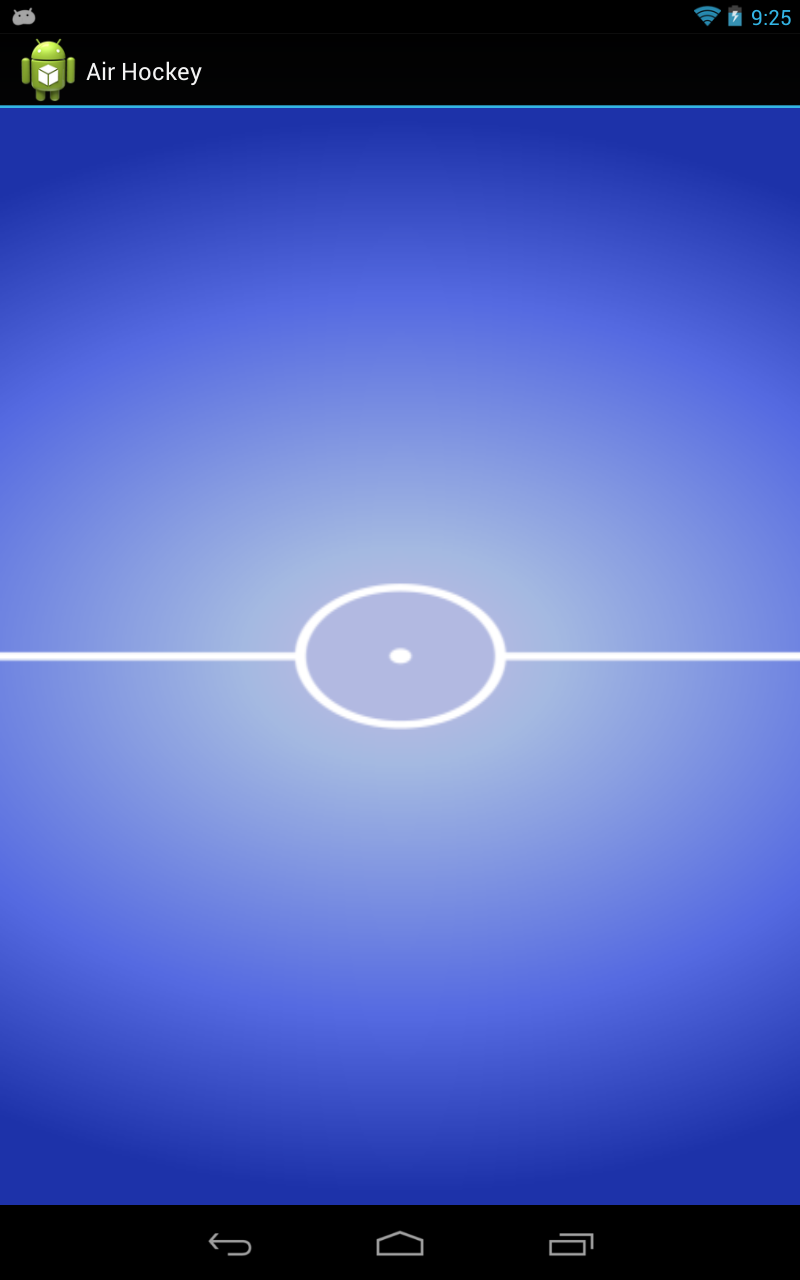
The texture looks a bit stretched/squashed, because we are currently asking OpenGL to fill the screen with that texture. With a basic framework in place, we can start adding some more detail in future lessons and start turning this into an actual game.
Debugging NDK code
While developing this project, I had to hook up a debugger as something was going bad in the PNG loading code, and I just wasn’t sure what. It turns out that I had confused a png_bytep* with a png_byte* — the ‘p’ in the first one means that it’s already a pointer, so I didn’t have to put another star there. I had some issues using the debugging at first, so here are some tips that might help you out if you want to hook up the debugger:
- Your project absolutely cannot have any spaces in its path. Otherwise, the debugger will inexplicably fail to connect.
- The native code needs to be built with NDK_DEBUG=1; see “Debugging native applications” on this page: Using the NDK plugin.
- Android will not wait for gdb to connect before executing the code. Add SystemClock.sleep(10000); to RendererWrapper’s onSurfaceCreated() method to add a sufficient delay to hit your breakpoints.
Once that’s done, you can start debugging from Eclipse by right-clicking the project and selecting Debug As->Android Native Application.
Exploring further
The full source code for this lesson can be found at the GitHub project. For a “friendlier” introduction to OpenGL ES 2 that is focused on Java and Android, see Android Lesson One: Getting Started or OpenGL ES 2 for Android: A Quick-Start Guide.
What could we do to further streamline the code? If we were using C++, we could take advantage of destructors to create, for example, a FileData that cleans itself up when it goes out of scope. I’d also like to make the structs private somehow, as their internals don’t really need to be exposed to clients. What else would you do?
Further reading
- [fltk.general] Decoding png already in memory
- Accessing Android Resources from C++
- Android NDK Cross-Compile Setup (libpng and freetype)
- C #define macro for debug printing
- Cocos2d-x source code
- Java Native Interface Specification
- libpng-manual.txt – A description on how to use and modify libpng
- Load images under Android with NDK and JNI
- Sensible Error Handling: Part 1
- The Always-Evolving Coding Style
- Time for action – loading a texture in OpenGL ES
- Using the NDK plugin
In the next two posts, we’ll look at adding support for iOS and emscripten. Now that we’ve built up this base, it actually won’t take too much work!
Pingback: Developing a Simple Game of Air Hockey Using C++ and OpenGL ES 2 for Android, iOS, and the Web | Learn OpenGL ES
Pingback: Loading a PNG into Memory and Displaying It as a Texture with OpenGL ES 2: Adding Support for iOS | Learn OpenGL ES
Pingback: Calling OpenGL from C on the Web by Using Emscripten, Sharing Common Code with Android and iOS | Learn OpenGL ES
Pingback: Loading a PNG into Memory and Displaying It as a Texture with OpenGL ES 2: Adding Support for Emscripten | Learn OpenGL ES
Hi, I really appreciate your fantastic explanation of loading Texture through Open GL ES 2.0.
And really thank you to get code of your projects by GIT.
But I have a beginner level-problem. That is, I don’t know how to make ‘png.h’
I downloaded ‘libpng’ and extract the list of files that is written in your example code/…./3rdParty/…/android.mk.
Then I try to build ‘static library’, but I got nothing.
Could you give me some hints or advice to let me do right way to get ‘png.h’ which is used in your explanation.
Really thank you for posting amazing tutorial and saving me, a beginner at Open GL ES 2.0
Hi BK,
The “png.h” file will come with libpng, so there will be nothing to build. If you are getting errors about that file, it sounds like it might be an include path problem. You just need to do the following to include libpng in your NDK build:
1) Copy pnglibconf.h.prebuilt from libpng/scripts/ to libpng/ and remove the .prebuilt extension.
2) Create a new file called “Android.mk” and place it in the libpng/ folder. That file should have the following contents:
LOCAL_PATH := $(call my-dir)

include $(CLEAR_VARS)

LOCAL_MODULE := libpng
LOCAL_SRC_FILES = png.c \
                  pngerror.c \
                  pngget.c \
                  pngmem.c \
                  pngpread.c \
                  pngread.c \
                  pngrio.c \
                  pngrtran.c \
                  pngrutil.c \
                  pngset.c \
                  pngtrans.c \
                  pngwio.c \
                  pngwrite.c \
                  pngwtran.c \
                  pngwutil.c
LOCAL_EXPORT_C_INCLUDES := $(LOCAL_PATH)
LOCAL_EXPORT_LDLIBS := -lz

include $(BUILD_STATIC_LIBRARY)
3) To actually call this static library from your build script, you need to add the following to your jni Android.mk:
LOCAL_STATIC_LIBRARIES := libpng
…
And at the very end of the file:
$(call import-add-path,$(PROJECT_ROOT_PATH)/3rdparty)
$(call import-module,libpng)
Replace $(PROJECT_ROOT_PATH)/3rdparth with wherever you placed the libpng folder. If you want to use PROJECT_ROOT_PATH, you have to define it at the top of the file like this:
PROJECT_ROOT_PATH := $(LOCAL_PATH)/../../../
Adjusting that to match your path.
I think the easiest way is to just clone everything from Github and build it like that, as that way you shouldn’t need to change anything. I just tried cloning the github repo for this lesson (https://github.com/learnopengles/airhockey.git), downloaded libpng 1.6.5 (http://www.libpng.org/pub/png/libpng.html) and I was able to compile the code with ndk-build run in the jni directory. What errors are you seeing?
When you clone the project from github, you will already have a libpng folder in 3rdparty which contains the Android.mk file. When you download and unzip libpng from the Internet, just paste all the files directly in that libpng folder, and not in a subfolder. I’m thinking that might be the cause, too.
If you’re not looking to write the code in C, there’s also a much easier/friendlier approach that uses Java, here: http://www.learnopengles.com/android-lesson-four-introducing-basic-texturing/
Thank you so much about your help. I downloaded your project then linking the folders that we needed. Then, it works. Thank you!!!!!!!!:)
Glad it worked! 🙂
Hi,
Me again..
Got some question again.. In chapter 6.6 you have a variable like this
m[0] = a/ aspect;
m[1] = 0f;
m[2] = 0f;
m[3] = 0f;
m[4] = 0f;
m[5] = a;
m[6] = 0f;
m[7] = 0f;
m[8] = 0f;
m[9] = 0f;
m[10] = -((f + n) / (f – n));
m[11] = -1f;
m[12] = 0f;
m[13] = 0f;
m[14] = -((2f * f * n) / (f – n));
m[15] = 0f;
Although you explain whats the use of it. You havent explain why you put the computation on a certain m[i]. Like this one m[5]=a then majority of it is value of 0f.
Hi Skadush,
I just wouldn’t worry about this too much. It’s like if you start learning how to repair a car, you don’t need to know the math behind the combustion of a certain air/fuel mixture; you just need to know that engines burn fuel in order to work. If you’re curious, there is a good derivation of the math available on this website: http://www.songho.ca/opengl/gl_projectionmatrix.html. This will explain the derivation of each part of the matrix in detail.
No dont mind the question.. i cant delete it. BTW i realize that you have a math error on chapter 6.7 on matrix matrix multiplication.
the answer should
8 5
20 16(not 13 because 4 X 1 = 4, and 12 + 4 = 16) 😀
Is that correct or my calculation is wrong?
I double-checked with WolframAlpha and {{8, 5}, {20, 13}} is indeed the correct result. For 13, you would be adding M(row, column) = M1(2, 1) * M2(1, 2) + M1(2, 2) * M2(2, 2) = 3*3 + 4*1 = 9 + 4 = 13.
You can experiment with matrix multiplication here: http://www.wolframalpha.com/input/?i=matrix+multiplication+calculator
With some more info available here: http://mathworld.wolfram.com/MatrixMultiplication.html
Pingback: Finishing Up Our Native Air Hockey Project With Touch Events and Basic Collision Detection | Learn OpenGL ES
I receive this error message when running on the iPhone IOS simulator.
Undefined symbols for architecture i386:
“_png_create_info_struct”, referenced from:
_get_raw_image_data_from_png in image.o
“_png_create_read_struct”, referenced from:
_get_raw_image_data_from_png in image.o
“_png_destroy_read_struct”, referenced from:
_get_raw_image_data_from_png in image.o
“_png_get_IHDR”, referenced from:
_read_and_update_info in image.o
“_png_get_color_type”, referenced from:
_read_and_update_info in image.o
“_png_get_io_ptr”, referenced from:
_read_png_data_callback in image.o
“_png_get_rowbytes”, referenced from:
_read_entire_png_image in image.o
“_png_get_valid”, referenced from:
_read_and_update_info in image.o
“_png_read_end”, referenced from:
_get_raw_image_data_from_png in image.o
“_png_read_image”, referenced from:
_read_entire_png_image in image.o
“_png_read_info”, referenced from:
_read_and_update_info in image.o
“_png_read_update_info”, referenced from:
_read_and_update_info in image.o
“_png_set_add_alpha”, referenced from:
_read_and_update_info in image.o
“_png_set_expand_gray_1_2_4_to_8”, referenced from:
_read_and_update_info in image.o
“_png_set_longjmp_fn”, referenced from:
_get_raw_image_data_from_png in image.o
“_png_set_packing”, referenced from:
_read_and_update_info in image.o
“_png_set_palette_to_rgb”, referenced from:
_read_and_update_info in image.o
“_png_set_read_fn”, referenced from:
_get_raw_image_data_from_png in image.o
“_png_set_scale_16”, referenced from:
_read_and_update_info in image.o
“_png_set_tRNS_to_alpha”, referenced from:
_read_and_update_info in image.o
“_png_sig_cmp”, referenced from:
_get_raw_image_data_from_png in image.o
ld: symbol(s) not found for architecture i386
clang: error: linker command failed with exit code 1 (use -v to see invocation)
Hi Linker Tinker, you’ll need to have the libpng files linked in your Xcode project. In the next post (http://www.learnopengles.com/loading-a-png-into-memory-and-displaying-it-as-a-texture-with-opengl-es-2-adding-support-for-ios/) please check out the section titled “Adding the libpng files” under “Updating the iOS code”.
I downloaded the project and compiled it (after adding the libpng files) but it does not run….
01-14 22:24:09.382: A/libc(17902): Fatal signal 11 (SIGSEGV) at 0x00000000 (code=1), thread 17915 (Thread-9486)
I have other Android NDK OpenGL apps that work on my Nexus 7 but this one fails
Textures draws black if I save it via photoshop File->Save For Web.
But they works perfectly if I save it just via File->Save As.
Do you know how to solve this problem? I really like Save For Web.
Hi Alex,
This sounds like an issue with the alpha channel being saved differently between the two options. You could ignore it in your shader or just make sure that the saved file has the data you expect.
Alternatively, it could be an issue with 256-color paletted files, which also needs to be accounted for when you load in the texture data.
Hi,
I’m curious why are you asserting the results of glGenTextures is not equal to zero? I recall reading in the specs a long time ago that glGenTextures could very well return any value, and the zero is not a reserved value. In fact you don’t have to call glGenTextures, you can bind to any value you want including zero, so you can use your own ID system for textures. Is my understanding mistaken?
After re-reading the man page for glGenTextures, you may be right. A possible area of the code to improve. 🙂
Hi, thanks for such a wonderful tutorial. It really helped me understand the process. I am trying to build an app for android which processes images using a C++ and OpenGL ES 2 based native plugin. This tutorial is well written and is easy to follow ,however, I want to be able to read multiple formats and not just .png . I found out that SOIL2 (Simple OpenGL Image Library 2) can help me but I have idea how to go around it. Any help will be appreciated. Thanks in advance.
Hi Jai, I think it would be easiest to use Java to open and decode these various files. You can then pass a pointer to the raw data to native code use JNI, process it and go back to Java. The NDK is really giving you low-level access in the first place and high-level interfaces are mostly missing.