To listen to touch events, you first need to subclass GLSurfaceView and create your own custom view. In that view, you create a default constructor that calls the superclass, create a new method to take in a specific renderer (LessonFiveRenderer in this case) instead of the generic interface, and override onTouchEvent(). We pass in a concrete renderer class, because we will be calling specific methods on that class in the onTouchEvent() method.
On Android, the OpenGL rendering is done in a separate thread, so we’ll also look at how we can safely dispatch these calls from the main UI thread that is listening to the touch events, over to the separate renderer thread.
publicclassLessonFiveGLSurfaceViewextendsGLSurfaceView{privateLessonFiveRenderermRenderer;publicLessonFiveGLSurfaceView(Contextcontext){super(context);}@OverridepublicbooleanonTouchEvent(MotionEventevent){if(event!=null){if(event.getAction()==MotionEvent.ACTION_DOWN){if(mRenderer!=null){// Ensure we call switchMode() on the OpenGL thread.// queueEvent() is a method of GLSurfaceView that will do this for us.queueEvent(newRunnable(){@Overridepublicvoidrun(){mRenderer.switchMode();}});returntrue;}}}returnsuper.onTouchEvent(event);}// Hides superclass method.publicvoidsetRenderer(LessonFiveRendererrenderer){mRenderer=renderer;super.setRenderer(renderer);}}
And the implementation of switchMode() in LessonFiveRenderer:
publicvoidswitchMode(){mBlending=!mBlending;if(mBlending){// No culling of back facesGLES20.glDisable(GLES20.GL_CULL_FACE);// No depth testingGLES20.glDisable(GLES20.GL_DEPTH_TEST);// Enable blendingGLES20.glEnable(GLES20.GL_BLEND);GLES20.glBlendFunc(GLES20.GL_ONE,GLES20.GL_ONE);}else{// Cull back facesGLES20.glEnable(GLES20.GL_CULL_FACE);// Enable depth testingGLES20.glEnable(GLES20.GL_DEPTH_TEST);// Disable blendingGLES20.glDisable(GLES20.GL_BLEND);}}
Let’s look a little bit more closely at LessonFiveGLSurfaceView::onTouchEvent(). Something important to remember is that touch events run on the UI thread, while GLSurfaceView creates the OpenGL ES context in a separate thread, which means that our renderer’s callbacks also run in a separate thread. This is an important point to remember, because we can’t call OpenGL from another thread and just expect things to work.
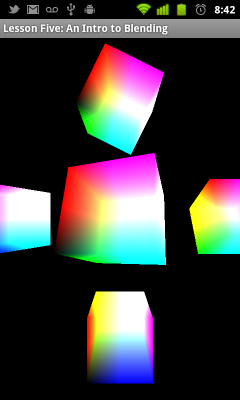
Thankfully, the guys that wrote GLSurfaceView also thought of this, and provided a queueEvent() method that you can use to call stuff on the OpenGL thread. So, when we want to turn blending on and off by tapping the screen, we make sure that we’re calling the OpenGL stuff on the right thread by using queueEvent() in the UI thread.
Further exercises
How would you listen to keyboard events, or other system events, and show an update in the OpenGL context?
2 comments and 1 pingback to “Listening to Android Touch Events, and Acting on Them”
Hai, I want to know the object coordinates of the cube.This I am using.But giving Null Exception.How can i rectify it??? public void handleActionDown(int eventX, int eventY) { if (eventX >= (x – bitmap[numFaces].getWidth()/2) && (eventX = (y – bitmap[numFaces].getHeight()/2) && (y <= (y + bitmap[numFaces].getHeight()/2 ))) { Log.d("Mytag", "Coords: x=" + eventX + ",y=" + eventY);
How can I find out if the user clicked on a position, such as in the lower right corner of the screen. I know I can do in the game. Alternatively, could you show me a tutorial on buttons. Thank you for your response.
Comments are closed. This site is kept as a historical archive.
Pingback: Android Lesson Five: An Introduction to Blending | Learn OpenGL ES
Hai,
I want to know the object coordinates of the cube.This I am using.But giving Null Exception.How can i rectify it???
public void handleActionDown(int eventX, int eventY)
{
if (eventX >= (x – bitmap[numFaces].getWidth()/2) && (eventX = (y – bitmap[numFaces].getHeight()/2) && (y <= (y + bitmap[numFaces].getHeight()/2 )))
{
Log.d("Mytag", "Coords: x=" + eventX + ",y=" + eventY);
setTouched(true);
} else
{
setTouched(false);
}
}
else
{
setTouched(false);
}
// TODO Auto-generated method stub
}
On surface view it is,
public boolean onTouchEvent(MotionEvent event) {
if (event.getAction() == MotionEvent.ACTION_DOWN)
{
mcube1.handleActionDown((int)event.getX(), (int)event.getY());
Log.d("Mytag", "Coords: x=" + event.getX() + ",y=" + event.getY());
}
if (event.getAction() == MotionEvent.ACTION_MOVE) {
if (mcube1.isTouched()) {
mcube1.setX((int)event.getX());
mcube1.setY((int)event.getY());
Log.d("works", "Coords: x=" + event.getX() + ",y=" + event.getY());
}
} if (event.getAction() == MotionEvent.ACTION_UP) {
if (mcube1.isTouched())
{
mcube1.setTouched(false);
Log.d("works", "Coords: x=" + event.getX() + ",y=" + event.getY());
}
}
return true;
How can I find out if the user clicked on a position, such as in the lower right corner of the screen. I know I can do in the game.
Alternatively, could you show me a tutorial on buttons.
Thank you for your response.