Learn how to develop mobile graphics using OpenGL ES 2
Finishing Up Our Native Air Hockey Project With Touch Events and Basic Collision Detection
Posted on by Kevin
In this post in the air hockey series, we’re going to wrap up our air hockey project and add touch event handling and basic collision detection with support for Android, iOS, and emscripten.
The first thing we’ll do is update the core to add touch interaction to the game. We’ll first need to add some helper functions to a new core file called geometry.h.
staticinlineintsphere_intersects_ray(Spheresphere,Rayray);staticinlinefloatdistance_between(vec3point,Rayray);staticinlinevoidray_intersection_point(vec3result,Rayray,Planeplane);staticinlineintsphere_intersects_ray(Spheresphere,Rayray){if(distance_between(sphere.center,ray)<sphere.radius)return1;return0;}staticinlinefloatdistance_between(vec3point,Rayray){vec3p1_to_point;vec3_sub(p1_to_point,point,ray.point);vec3p2_to_point;vec3translated_ray_point;vec3_add(translated_ray_point,ray.point,ray.vector);vec3_sub(p2_to_point,point,translated_ray_point);// The length of the cross product gives the area of an imaginary
// parallelogram having the two vectors as sides. A parallelogram can be
// thought of as consisting of two triangles, so this is the same as
// twice the area of the triangle defined by the two vectors.
// http://en.wikipedia.org/wiki/Cross_product#Geometric_meaning
vec3cross_product;vec3_mul_cross(cross_product,p1_to_point,p2_to_point);floatarea_of_triangle_times_two=vec3_len(cross_product);floatlength_of_base=vec3_len(ray.vector);// The area of a triangle is also equal to (base * height) / 2. In
// other words, the height is equal to (area * 2) / base. The height
// of this triangle is the distance from the point to the ray.
floatdistance_from_point_to_ray=area_of_triangle_times_two/length_of_base;returndistance_from_point_to_ray;}// http://en.wikipedia.org/wiki/Line-plane_intersection
// This also treats rays as if they were infinite. It will return a
// point full of NaNs if there is no intersection point.
staticinlinevoidray_intersection_point(vec3result,Rayray,Planeplane){vec3ray_to_plane_vector;vec3_sub(ray_to_plane_vector,plane.point,ray.point);floatscale_factor=vec3_mul_inner(ray_to_plane_vector,plane.normal)/vec3_mul_inner(ray.vector,plane.normal);vec3intersection_point;vec3scaled_ray_vector;vec3_scale(scaled_ray_vector,ray.vector,scale_factor);vec3_add(intersection_point,ray.point,scaled_ray_vector);memcpy(result,intersection_point,sizeof(intersection_point));}
We’ll do a line-sphere intersection test to see if we’ve touched the mallet using our fingers or a mouse. Once we’ve grabbed the mallet, we’ll do a line-plane intersection test to determine where to place the mallet on the board.
voidon_touch_press(floatnormalized_x,floatnormalized_y){Rayray=convert_normalized_2D_point_to_ray(normalized_x,normalized_y);// Now test if this ray intersects with the mallet by creating a
// bounding sphere that wraps the mallet.
Spheremallet_bounding_sphere=(Sphere){{blue_mallet_position[0],blue_mallet_position[1],blue_mallet_position[2]},mallet_height/2.0f};// If the ray intersects (if the user touched a part of the screen that
// intersects the mallet's bounding sphere), then set malletPressed =
// true.
mallet_pressed=sphere_intersects_ray(mallet_bounding_sphere,ray);}staticRayconvert_normalized_2D_point_to_ray(floatnormalized_x,floatnormalized_y){// We'll convert these normalized device coordinates into world-space
// coordinates. We'll pick a point on the near and far planes, and draw a
// line between them. To do this transform, we need to first multiply by
// the inverse matrix, and then we need to undo the perspective divide.
vec4near_point_ndc={normalized_x,normalized_y,-1,1};vec4far_point_ndc={normalized_x,normalized_y,1,1};vec4near_point_world,far_point_world;mat4x4_mul_vec4(near_point_world,inverted_view_projection_matrix,near_point_ndc);mat4x4_mul_vec4(far_point_world,inverted_view_projection_matrix,far_point_ndc);// Why are we dividing by W? We multiplied our vector by an inverse
// matrix, so the W value that we end up is actually the *inverse* of
// what the projection matrix would create. By dividing all 3 components
// by W, we effectively undo the hardware perspective divide.
divide_by_w(near_point_world);divide_by_w(far_point_world);// We don't care about the W value anymore, because our points are now
// in world coordinates.
vec3near_point_ray={near_point_world[0],near_point_world[1],near_point_world[2]};vec3far_point_ray={far_point_world[0],far_point_world[1],far_point_world[2]};vec3vector_between;vec3_sub(vector_between,far_point_ray,near_point_ray);return(Ray){{near_point_ray[0],near_point_ray[1],near_point_ray[2]},{vector_between[0],vector_between[1],vector_between[2]}};}staticvoiddivide_by_w(vec4vector){vector[0]/=vector[3];vector[1]/=vector[3];vector[2]/=vector[3];}
This code first takes normalized touch coordinates which it receives from the Android, iOS or emscripten front ends, and then turns those touch coordinates into a 3D ray in world space. It then intersects the 3D ray with a bounding sphere for the mallet to see if we’ve touched the mallet.
Let’s continue with the code for handling a touch drag:
voidon_touch_drag(floatnormalized_x,floatnormalized_y){if(mallet_pressed==0)return;Rayray=convert_normalized_2D_point_to_ray(normalized_x,normalized_y);// Define a plane representing our air hockey table.
Planeplane=(Plane){{0,0,0},{0,1,0}};// Find out where the touched point intersects the plane
// representing our table. We'll move the mallet along this plane.
vec3touched_point;ray_intersection_point(touched_point,ray,plane);memcpy(previous_blue_mallet_position,blue_mallet_position,sizeof(blue_mallet_position));// Clamp to bounds
blue_mallet_position[0]=clamp(touched_point[0],left_bound+mallet_radius,right_bound-mallet_radius);blue_mallet_position[1]=mallet_height/2.0f;blue_mallet_position[2]=clamp(touched_point[2],0.0f+mallet_radius,near_bound-mallet_radius);// Now test if mallet has struck the puck.
vec3mallet_to_puck;vec3_sub(mallet_to_puck,puck_position,blue_mallet_position);floatdistance=vec3_len(mallet_to_puck);if(distance<(puck_radius+mallet_radius)){// The mallet has struck the puck. Now send the puck flying
// based on the mallet velocity.
vec3_sub(puck_vector,blue_mallet_position,previous_blue_mallet_position);}}staticfloatclamp(floatvalue,floatmin,floatmax){returnfmin(max,fmax(value,min));}
Once we’ve grabbed the mallet, we move it across the air hockey table by intersecting the new touch point with the table to determine the new position on the table. We then move the mallet to that new position. We also check if the mallet has struck the puck, and if so, we use the movement distance to calculate the puck’s new velocity.
We next need to update the lines that initialize our objects inside on_surface_created() as follows:
The new linmath.h has merged in the custom code we added to our matrix_helper.h, so we no longer need that file. As part of those changes, our perspective method call in on_surface_changed() now needs the angle entered in radians, so let’s update that method call as follows:
// Translate the puck by its vector
vec3_add(puck_position,puck_position,puck_vector);// If the puck struck a side, reflect it off that side.
if(puck_position[0]<left_bound+puck_radius||puck_position[0]>right_bound-puck_radius){puck_vector[0]=-puck_vector[0];vec3_scale(puck_vector,puck_vector,0.9f);}if(puck_position[2]<far_bound+puck_radius||puck_position[2]>near_bound-puck_radius){puck_vector[2]=-puck_vector[2];vec3_scale(puck_vector,puck_vector,0.9f);}// Clamp the puck position.
puck_position[0]=clamp(puck_position[0],left_bound+puck_radius,right_bound-puck_radius);puck_position[2]=clamp(puck_position[2],far_bound+puck_radius,near_bound-puck_radius);// Friction factor
vec3_scale(puck_vector,puck_vector,0.99f);
This code will update the puck’s position and cause it to go bouncing around the table. We’ll also need to add the following after the call to mat4x4_mul(view_projection_matrix, projection_matrix, view_matrix);:
glSurfaceView.setOnTouchListener(newOnTouchListener(){@OverridepublicbooleanonTouch(Viewv,MotionEventevent){if(event!=null){// Convert touch coordinates into normalized device// coordinates, keeping in mind that Android's Y// coordinates are inverted.finalfloatnormalizedX=(event.getX()/(float)v.getWidth())*2-1;finalfloatnormalizedY=-((event.getY()/(float)v.getHeight())*2-1);if(event.getAction()==MotionEvent.ACTION_DOWN){glSurfaceView.queueEvent(newRunnable(){@Overridepublicvoidrun(){rendererWrapper.handleTouchPress(normalizedX,normalizedY);}});}elseif(event.getAction()==MotionEvent.ACTION_MOVE){glSurfaceView.queueEvent(newRunnable(){@Overridepublicvoidrun(){rendererWrapper.handleTouchDrag(normalizedX,normalizedY);}});}returntrue;}else{returnfalse;}}});
This touch listener takes the incoming touch events from the user, converts them into normalized coordinates in OpenGL’s normalized device coordinate space, and then calls the renderer wrapper which will pass the event on into our native code.
RendererWrapper.java
We’ll need to add the following to RendererWrapper.java:
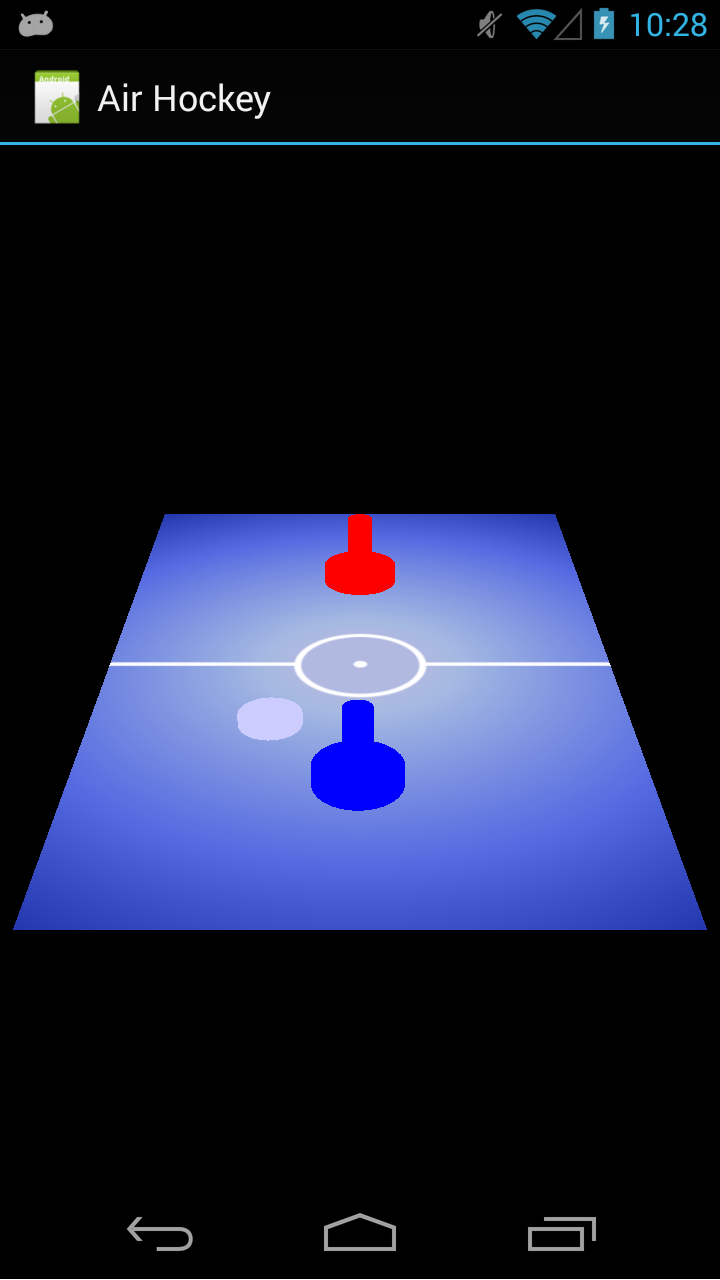
We now have everything in place for Android, and if we run the app, it should look similar to as seen below:
Air Hockey with touch, running on a Galaxy Nexus
Adding support for iOS
To add support for iOS, we need to update ViewController.m and add support for touch events. To do that and update the frame rate at the same time, let’s add the following to viewDidLoad: before the call to [self setupGL]:
To listen to the touch events, we need to override a few methods. Let’s add the following methods before - (void)glkView:(GLKView *)view drawInRect:(CGRect)rect:
This is similar to the Android code in that it takes the input touch event, converts it to OpenGL’s normalized device coordinate space, and then sends it on to our game code.
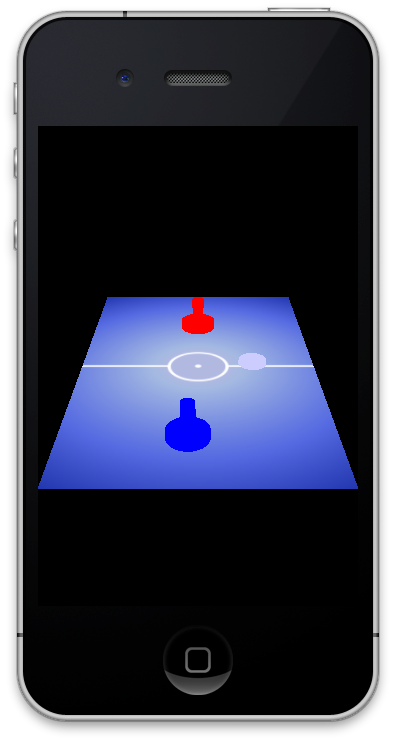
Our iOS app should look similar to the following image:
Air Hockey with touch, on iOS
Adding support for emscripten
Adding support for emscripten is just as easy. Let’s first add the following to the top of main.c:
1
2
3
staticvoidhandle_input();// ...
intis_dragging;
At the beginning of do_frame(), add a call to handle_input();:
This code sets is_dragging depending on whether we just clicked the primary mouse button or if we’re currently dragging the mouse. Depending on the case, we’ll call either on_touch_press or on_touch_drag. The code to normalize the coordinates is the same as in Android and iOS, and indeed a case could be made to abstract out into the common game code, and just pass in the raw coordinates relative to the view size to that game code.
After compiling with emcc make, we should get output similar to the below:
Exploring further
That concludes our air hockey project! The full source code for this lesson can be found at the GitHub project. You can find a more in-depth look at the concepts behind the project from the perspective of Java Android in OpenGL ES 2 for Android: A Quick-Start Guide. For exploring further, there are many things you could add, like improved graphics, support for sound, a simple AI, multiplayer (on the same device), scoring, or a menu system.
Whether you end up using a commercial cross-platform solution like Unity or Corona, or whether you decide to go the independent route, I hope this series was helpful to you and most importantly, that you enjoy your future projects ahead and have a lot of fun with them. 🙂
0 comments and 1 pingback to “Finishing Up Our Native Air Hockey Project With Touch Events and Basic Collision Detection”
Pingback: Developing a Simple Game of Air Hockey Using C and OpenGL ES 2 for Android, iOS, and the Web | Learn OpenGL ES