Learn how to develop mobile graphics using OpenGL ES 2
Adding a 3d Perspective and Object Rendering to Our Air Hockey Project in Native C Code
Posted on by Kevin
For this post in the air hockey series, we’ll learn how to render our scene from a 3D perspective, as well as how to add a puck and two mallets to the scene. We’ll also see how easy it is to bring these changes to Android, iOS, and emscripten.
The first thing we’ll do is add support for a matrix library so we can use the same matrix math on all three platforms, and then we’ll introduce the changes to our code from the top down. There are a lot of libraries out there, so I decided to use linmath.h by Wolfgang Draxinger for its simplicity and compactness. Since it’s on GitHub, we can easily add it to our project by running the following git command from the root airhockey/ folder:
We’ve added all of the new includes, constants, variables, and function declarations that we’ll need for our new game code. We’ll use Table, Puck, and Mallet to represent our drawable objects, TextureProgram and ColorProgram to represent our shader programs, and the mat4x4 (a datatype from linmath.h) matrices for our OpenGL matrices. In our draw loop, we’ll call position_table_in_scene() to position the table, and position_object_in_scene() to position our other objects.
For those of you who have also followed the Java tutorials from OpenGL ES 2 for Android: A Quick-Start Guide, you’ll recognize that this has a lot in common with the air hockey project from the first part of the book. The code for that project can be freely downloaded from The Pragmatic Bookshelf.
Our new on_surface_changed(int width, int height) now takes in two parameters for the width and the height, and it sets up a projection matrix, and then sets up the view matrix to be slightly above and behind the origin, with an eye position of (0, 1.2, 2.2).
on_draw_frame()
1
2
3
4
5
6
7
8
9
10
11
12
13
14
15
16
17
voidon_draw_frame(){glClear(GL_COLOR_BUFFER_BIT|GL_DEPTH_BUFFER_BIT);mat4x4_mul(view_projection_matrix,projection_matrix,view_matrix);position_table_in_scene();draw_table(&table,&texture_program,model_view_projection_matrix);position_object_in_scene(0.0f,mallet_height/2.0f,-0.4f);draw_mallet(&red_mallet,&color_program,model_view_projection_matrix);position_object_in_scene(0.0f,mallet_height/2.0f,0.4f);draw_mallet(&blue_mallet,&color_program,model_view_projection_matrix);// Draw the puck.
position_object_in_scene(0.0f,puck_height/2.0f,0.0f);draw_puck(&puck,&color_program,model_view_projection_matrix);}
Our new on_draw_frame() positions and draws the table, mallets, and the puck.
Because we changed the definition of on_surface_changed(), we also have to change the declaration in game.h. Change void on_surface_changed(); to void on_surface_changed(int width, int height);.
Adding new helper functions
 1
 2
 3
 4
 5
 6
 7
 8
 9
10
11
12
13
14
15
staticvoidposition_table_in_scene(){// The table is defined in terms of X & Y coordinates, so we rotate it
// 90 degrees to lie flat on the XZ plane.
mat4x4rotated_model_matrix;mat4x4_identity(model_matrix);mat4x4_rotate_X(rotated_model_matrix,model_matrix,deg_to_radf(-90.0f));mat4x4_mul(model_view_projection_matrix,view_projection_matrix,rotated_model_matrix);}staticvoidposition_object_in_scene(floatx,floaty,floatz){mat4x4_identity(model_matrix);mat4x4_translate_in_place(model_matrix,x,y,z);mat4x4_mul(model_view_projection_matrix,view_projection_matrix,model_matrix);}
These functions update the matrices to let us position the table, puck, and mallets in the scene. We’ll define all of the extra functions that we need soon.
Adding new shaders
Now we’ll start drilling down into each part of the program and make the changes necessary for our game code to work. Let’s begin by updating our shaders. First, let’s rename our vertex shader shader.vsh to texture_shader.vsh and update it as follows:
#include"game_objects.h"#include"buffer.h"#include"platform_gl.h"#include"program.h"#include"linmath.h"#include<math.h>// Triangle fan
// position X, Y, texture S, T
staticconstfloattable_data[]={0.0f,0.0f,0.5f,0.5f,-0.5f,-0.8f,0.0f,0.9f,0.5f,-0.8f,1.0f,0.9f,0.5f,0.8f,1.0f,0.1f,-0.5f,0.8f,0.0f,0.1f,-0.5f,-0.8f,0.0f,0.9f};Tablecreate_table(GLuinttexture){return(Table){texture,create_vbo(sizeof(table_data),table_data,GL_STATIC_DRAW)};}voiddraw_table(constTable*table,constTextureProgram*texture_program,mat4x4m){glUseProgram(texture_program->program);glActiveTexture(GL_TEXTURE0);glBindTexture(GL_TEXTURE_2D,table->texture);glUniformMatrix4fv(texture_program->u_mvp_matrix_location,1,GL_FALSE,(GLfloat*)m);glUniform1i(texture_program->u_texture_unit_location,0);glBindBuffer(GL_ARRAY_BUFFER,table->buffer);glVertexAttribPointer(texture_program->a_position_location,2,GL_FLOAT,GL_FALSE,4*sizeof(GL_FLOAT),BUFFER_OFFSET(0));glVertexAttribPointer(texture_program->a_texture_coordinates_location,2,GL_FLOAT,GL_FALSE,4*sizeof(GL_FLOAT),BUFFER_OFFSET(2*sizeof(GL_FLOAT)));glEnableVertexAttribArray(texture_program->a_position_location);glEnableVertexAttribArray(texture_program->a_texture_coordinates_location);glDrawArrays(GL_TRIANGLE_FAN,0,6);glBindBuffer(GL_ARRAY_BUFFER,0);}
After the imports, this is the code to create and draw the table data. This is essentially the same as what we had before, with the coordinates adjusted a bit to change the table into a rectangle.
Generating circles and cylinders
Before we can draw a puck or a mallet, we’ll need to add some helper functions to draw a circle or a cylinder. Let’s define those now:
We first need two helper functions to calculate the size of a circle or a cylinder in terms of vertices. A circle drawn as a triangle fan has one vertex for the center, num_points vertices around the circle, and one more vertex to close the circle. An open-ended cylinder drawn as a triangle strip doesn’t have a center point, but it does have two vertices for each point around the circle, and two more vertices to close off the circle.
This code will generate the vertices for an open-ended cylinder. Note that for both the circle and the cylinder, the loop goes from 0 to num_points, so the first and last points around the circle are duplicated in order to close the loop around the circle.
A mallet contains two circles and two open-ended cylinders, positioned and sized so that the mallet’s base is wider and shorter than the mallet’s handle.
Since C’s trigonometric functions expect passed-in values to be in radians, we’ll use this function to convert degrees into radians, where needed.
Adding matrix helper functions
While linmath.h contains a lot of useful functions, there’s a few missing that we need for our game code. Create a new header file called matrix.h, and begin by adding the following code, all adapted from Android’s OpenGL Matrix class:
staticinlinevoidmat4x4_look_at(mat4x4m,floateyeX,floateyeY,floateyeZ,floatcenterX,floatcenterY,floatcenterZ,floatupX,floatupY,floatupZ){// See the OpenGL GLUT documentation for gluLookAt for a description
// of the algorithm. We implement it in a straightforward way:
floatfx=centerX-eyeX;floatfy=centerY-eyeY;floatfz=centerZ-eyeZ;// Normalize f
vec3f_vec={fx,fy,fz};floatrlf=1.0f/vec3_len(f_vec);fx*=rlf;fy*=rlf;fz*=rlf;// compute s = f x up (x means "cross product")
floatsx=fy*upZ-fz*upY;floatsy=fz*upX-fx*upZ;floatsz=fx*upY-fy*upX;// and normalize s
vec3s_vec={sx,sy,sz};floatrls=1.0f/vec3_len(s_vec);sx*=rls;sy*=rls;sz*=rls;// compute u = s x f
floatux=sy*fz-sz*fy;floatuy=sz*fx-sx*fz;floatuz=sx*fy-sy*fx;m[0][0]=sx;m[0][1]=ux;m[0][2]=-fx;m[0][3]=0.0f;m[1][0]=sy;m[1][1]=uy;m[1][2]=-fy;m[1][3]=0.0f;m[2][0]=sz;m[2][1]=uz;m[2][2]=-fz;m[2][3]=0.0f;m[3][0]=0.0f;m[3][1]=0.0f;m[3][2]=0.0f;m[3][3]=1.0f;mat4x4_translate_in_place(m,-eyeX,-eyeY,-eyeZ);}
We can use mat4x4_look_at() like a camera, and use it to position the scene in a certain way.
Adding shader program wrappers
We’re almost done the changes to our core code. Let’s wrap up those changes by adding the following code:
#pragma once
#include"platform_gl.h"typedefstruct{GLuintprogram;GLinta_position_location;GLinta_texture_coordinates_location;GLintu_mvp_matrix_location;GLintu_texture_unit_location;}TextureProgram;typedefstruct{GLuintprogram;GLinta_position_location;GLintu_mvp_matrix_location;GLintu_color_location;}ColorProgram;TextureProgramget_texture_program(GLuintprogram);ColorProgramget_color_program(GLuintprogram);
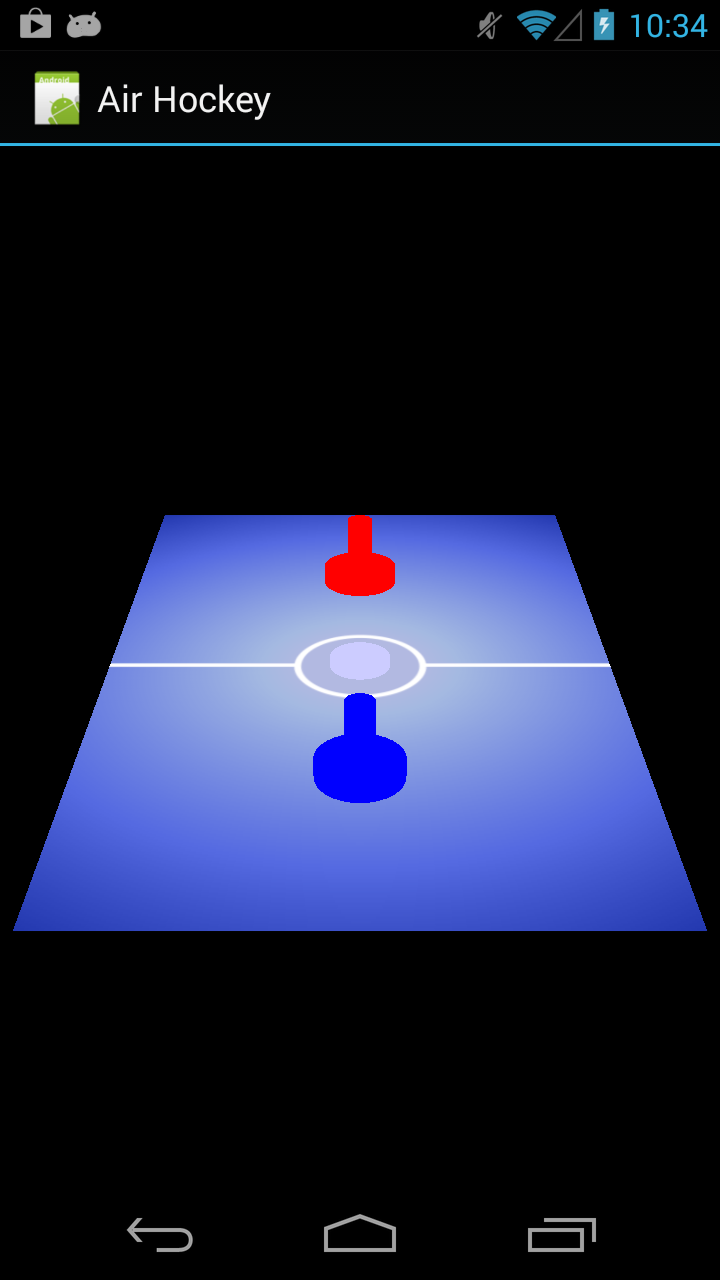
We then need to update renderer_wrapper.c and change the call to on_surface_changed(); to on_surface_changed(width, height);. Once we’ve done that, we should be able to run the app on our Android device, and it should look similar to the following image:
Air hockey, running on a Galaxy Nexus
Adding support for iOS
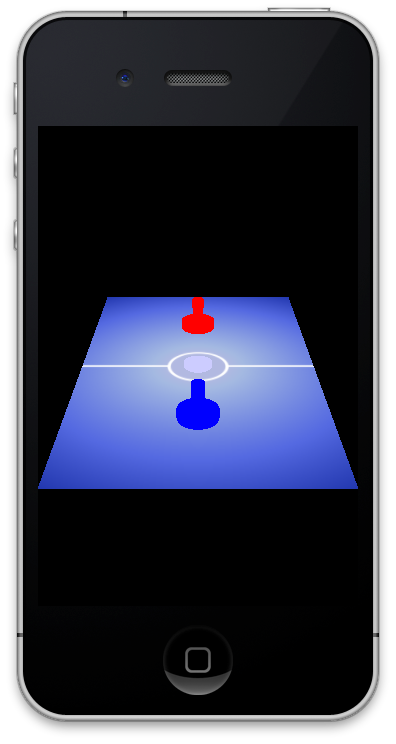
For iOS, we just need to open up the Xcode project and add the necessary references to linmath.h and our new core files to the appropriate folder groups, and then we need to update ViewController.m and change on_surface_changed(); to the following:
We then just need to update main.c, move the constants width and height from inside init_gl() to outside the function near the top of the file, and update the call to on_surface_changed(); to on_surface_changed(width, height);. We can then build the file by calling emmake make, which should produce a file that looks as follows:
See how easy that was? Now that we have a minimal cross-platform framework in place, it’s very easy for us to bring changes to the core code across to each platform.
Exploring further
The full source code for this lesson can be found at the GitHub project. In the next post, we’ll take a look at user input so we can move our mallet around the screen.
0 comments and 2 pingbacks to “Adding a 3d Perspective and Object Rendering to Our Air Hockey Project in Native C Code”
Pingback: Developing a Simple Game of Air Hockey Using C and OpenGL ES 2 for Android, iOS, and the Web | Learn OpenGL ES
Pingback: Finishing Up Our Native Air Hockey Project With Touch Events and Basic Collision Detection | Learn OpenGL ES